
Disclosure: MakerFlo sent me these Laserette products to use for a laser material test, and this post contains affiliate links. If you buy through them, I may earn a small commission at no extra cost to you.
Before I engrave anything new, I run a laser material test. MakerFlo sent me their Laserette swatches so I could dial in settings on my machines, so in this post I’ll walk you through exactly how I do a laser material test on the WeCreat Lumos Flex. That’s the machine I use to engrave live at markets and events, so getting my settings right ahead of time matters.
What Is a Laser Material Test?
A laser material test (sometimes called a test grid or test array) engraves a grid of small squares on a scrap of your material. Each square uses a different combination of power and speed. When it’s done, you pick the square that looks best and use those settings on your real project.
It takes a couple of minutes, and it saves you from ruining a blank you paid for. Even though a lot of laser software has presets now, I still like to run a material test most of the time, especially on a material I haven’t used before.
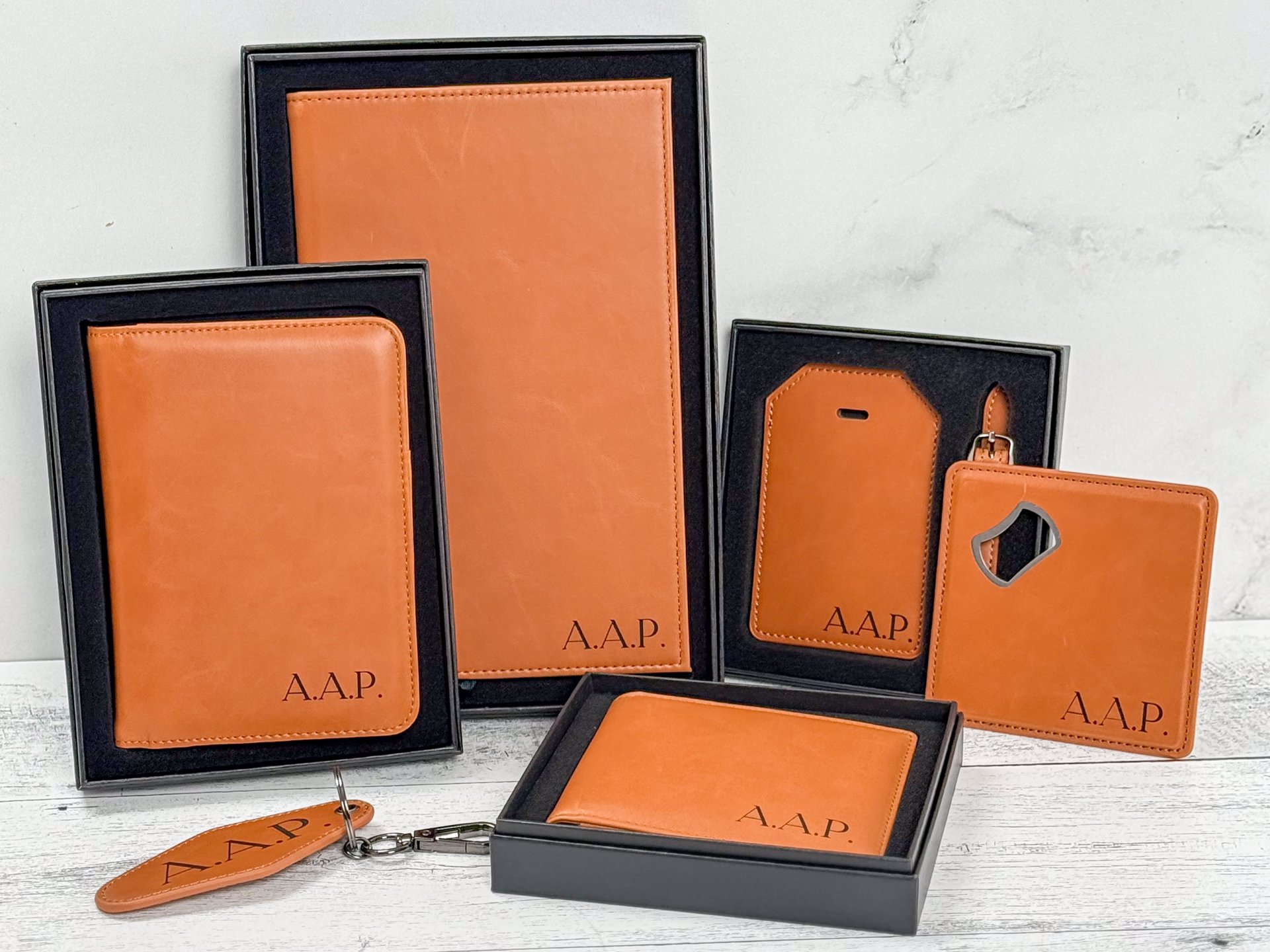
What Came in the MakerFlo Laserette Box
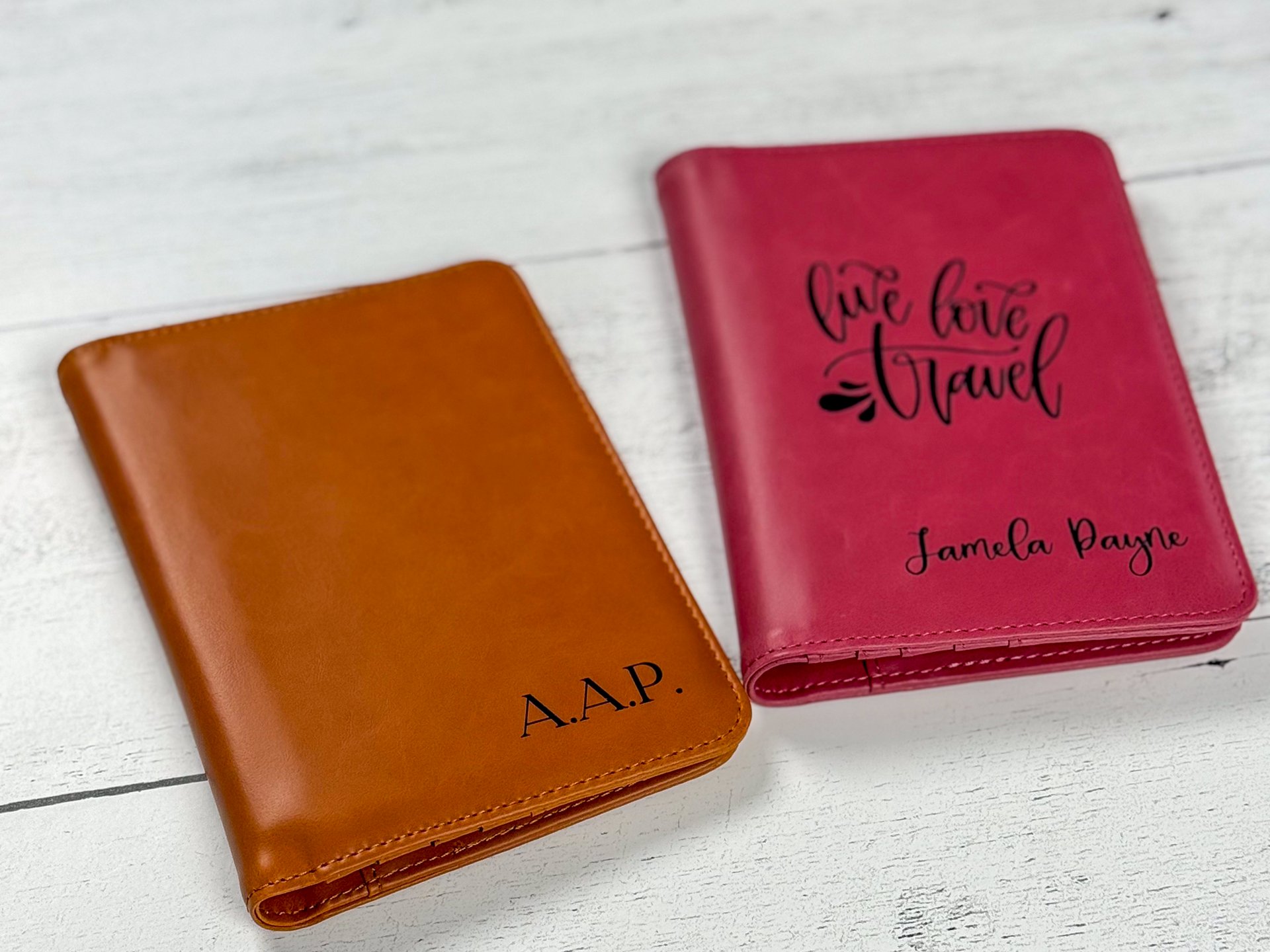
MakerFlo sent a nice mix of Laserette products in rawhide and pink:
- Passport wallets
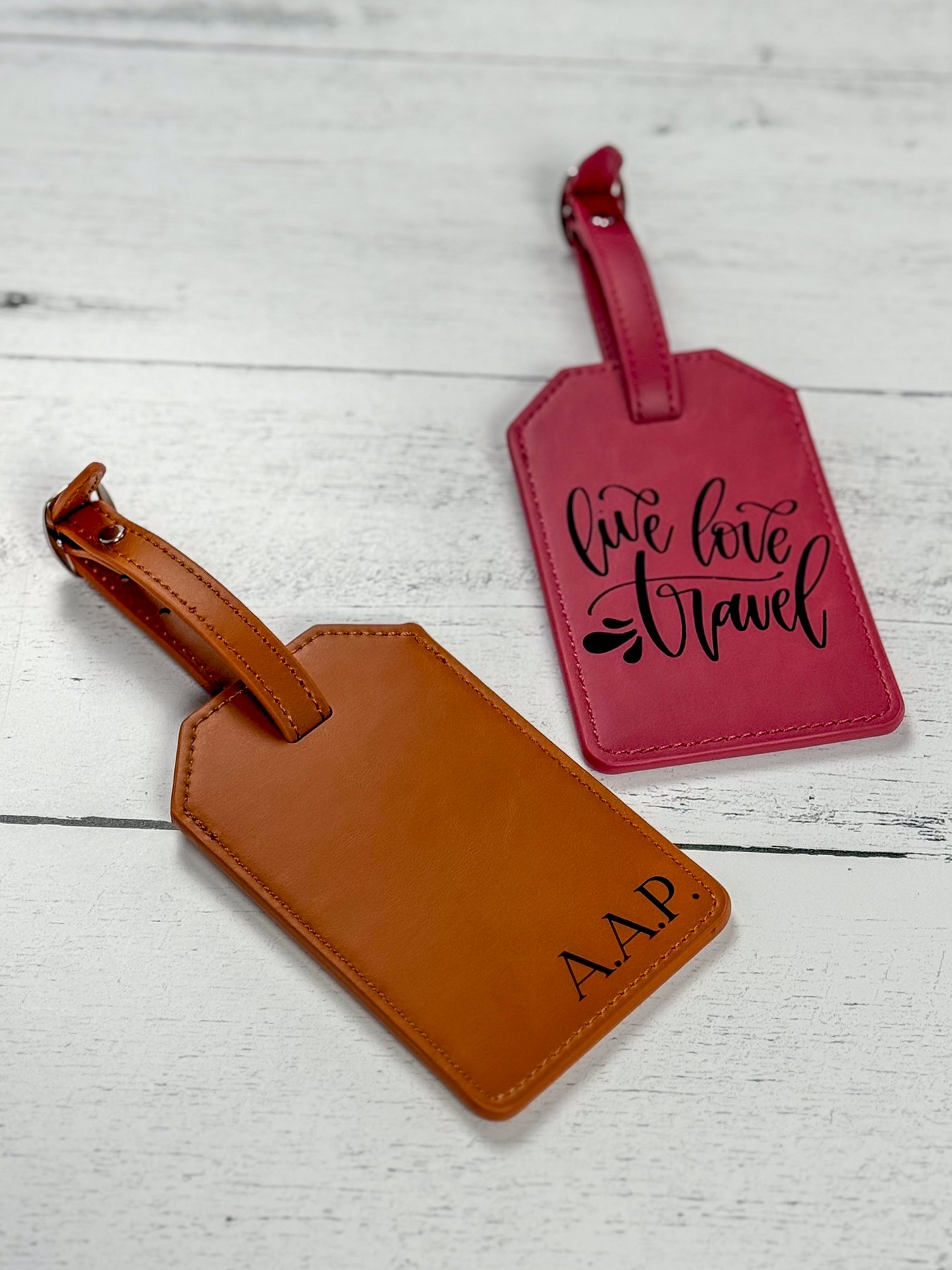
- Luggage tags (these make an amazing corporate gift or gift for a wedding party)
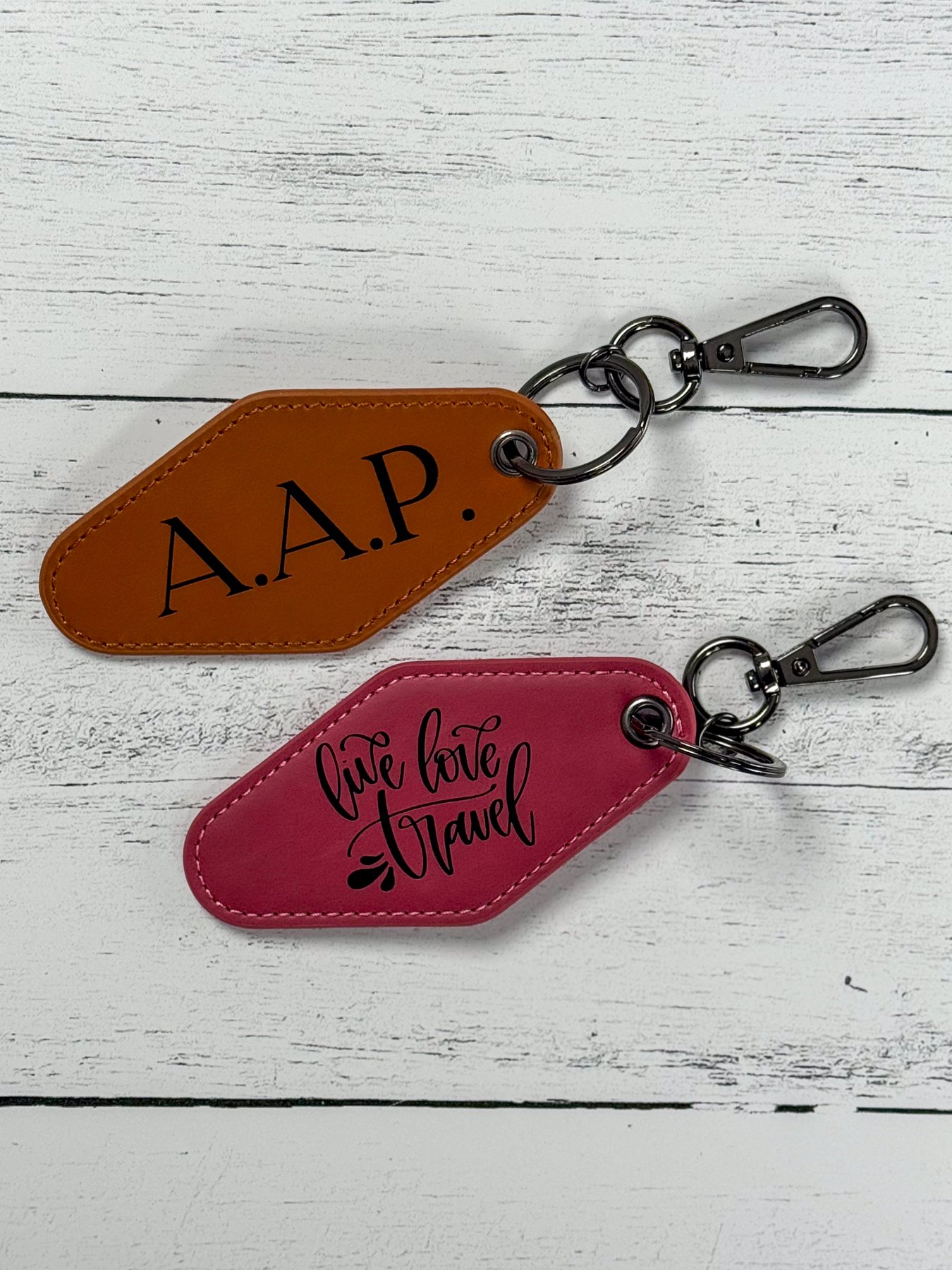
- Motel-style keychains
- Bottle opener coasters
- Laserette swatches for testing
Everything came wrapped in plastic, and most items come gift boxed, which is great if you’re selling them. For this test, I used the swatches so I could find my settings without using up a finished product.
How to Do a Laser Material Test on the WeCreat Lumos Flex
1. Open a New Project and Connect Your Machine
I opened the software, clicked New Project, and turned on the machine and my air purifier, since I was working in my craft studio. Then I clicked Device and picked my machine from the list of previous connections. It took a second, but it connected. A prompt came up for a premium membership, and I just clicked Cancel since you don’t need it for this.
2. Load Your Swatch and Focus
I started with the rawhide swatch and placed it in the machine. I took it off the hoop it came on so it would lay flatter.
You can focus using autofocus in the software or the focus knob on the back of the machine. I almost always use the manual knob. You turn it until the two lights overlap a little, and that’s your focus.
3. Line Up the Swatch on Screen
Back in the software, I clicked Refresh so the camera showed what was in the machine. If the preview looks too bright, close the lid and refresh again. I moved my test toward the top of the swatch so I’d have room left to test on another machine later.
4. Set Up the Material Testing Array
Next, I went to Toolbox and clicked Material Testing Array. I left the default settings alone and only changed the line density to 200. Then I clicked Confirm and made the array much smaller so another test would fit on the same swatch.
5. Label Your Test
This step is optional if you only have one laser. I have three machines, the Lumos Flex, an xTool P2, and a Glowforge Aura, so I added text that says “Lumos” above the grid. That way I always know which machine made which test.
6. Choose the Right Laser
For Laserette on the Lumos Flex, use the blue light. That’s the diode laser. The fiber laser is the one people call the red light, and it’s meant for metal.
7. Run the Test
Close the lid all the way, click Start, send it to the machine, and press the button on the machine when it prompts you. My test took about a minute and a half.
Fix: When Air Assist Blows Your Swatch Around
Partway through my first try, I noticed the swatch was moving around from the air. A shifted swatch means a crooked test, so I paused it. I held the swatch down so it couldn’t move, clicked Refresh, moved my test down just a little so it lined up again, and started it over.
If you’re testing on thin or lightweight material, weigh down or tape the edges outside the test area before you start. A flat, still swatch is the key to a laser material test you can actually read.
My WeCreat Lumos Flex Settings for MakerFlo Laserette
- Laser: diode (blue light)
- Power: 55
- Speed: 350
- Line density: 200
Once you have your settings, you can use them on any of the Laserette products. I found that the same settings worked on my other Laserette items too, like the keychains, luggage tags, and coasters. I’m in love with the look and feel of MakerFlo Laserette once it’s engraved.
Tips for Better Laser Material Tests
- Test on a swatch or scrap, not your finished product.
- Label every test with the machine and material so you can find your settings later.
- Keep your material flat and still. Take it off any hoop, and hold it down if your air assist moves it.
- Make the grid small so one swatch can hold more than one test.
- Save your winning settings as a custom material preset so you don’t have to test again.
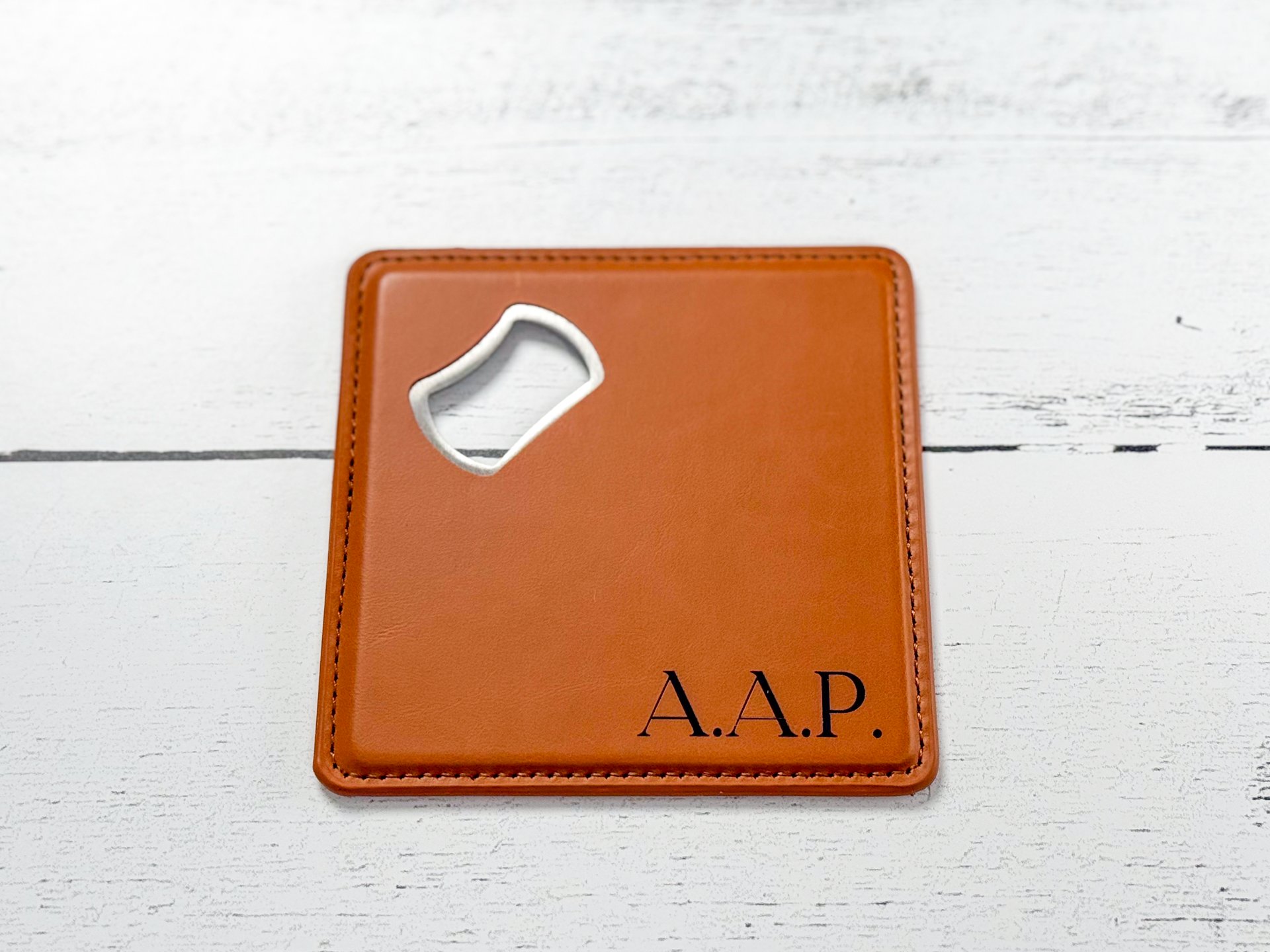
Laserette pieces like luggage tags, passport wallets, and coasters are popular personalized gifts. If you’re planning to sell them, check out my guide on how to price handmade products and my list of handmade items that sell. Looking at other lasers? My xTool P2 review covers another machine I use.
Laser Material Test FAQ
Which laser should I use for leatherette on the WeCreat Lumos Flex?
Use the diode laser, also called the blue light. The fiber laser is for metal.
How long does a laser material test take?
My material testing array on the Lumos Flex took about a minute and a half.
Do I need to run a material test on every machine?
Settings don’t carry over from one machine to another, so it’s worth running a quick test on each laser you use. That’s why I label every test with the machine name.
What material do you want me to test next? Tell me in the comments and I’ll add it to my list.


