Disclosure: MakerFlo sent me these Laserette products to try, and this post contains affiliate links. If you buy through them, I may earn a small commission at no extra cost to you.
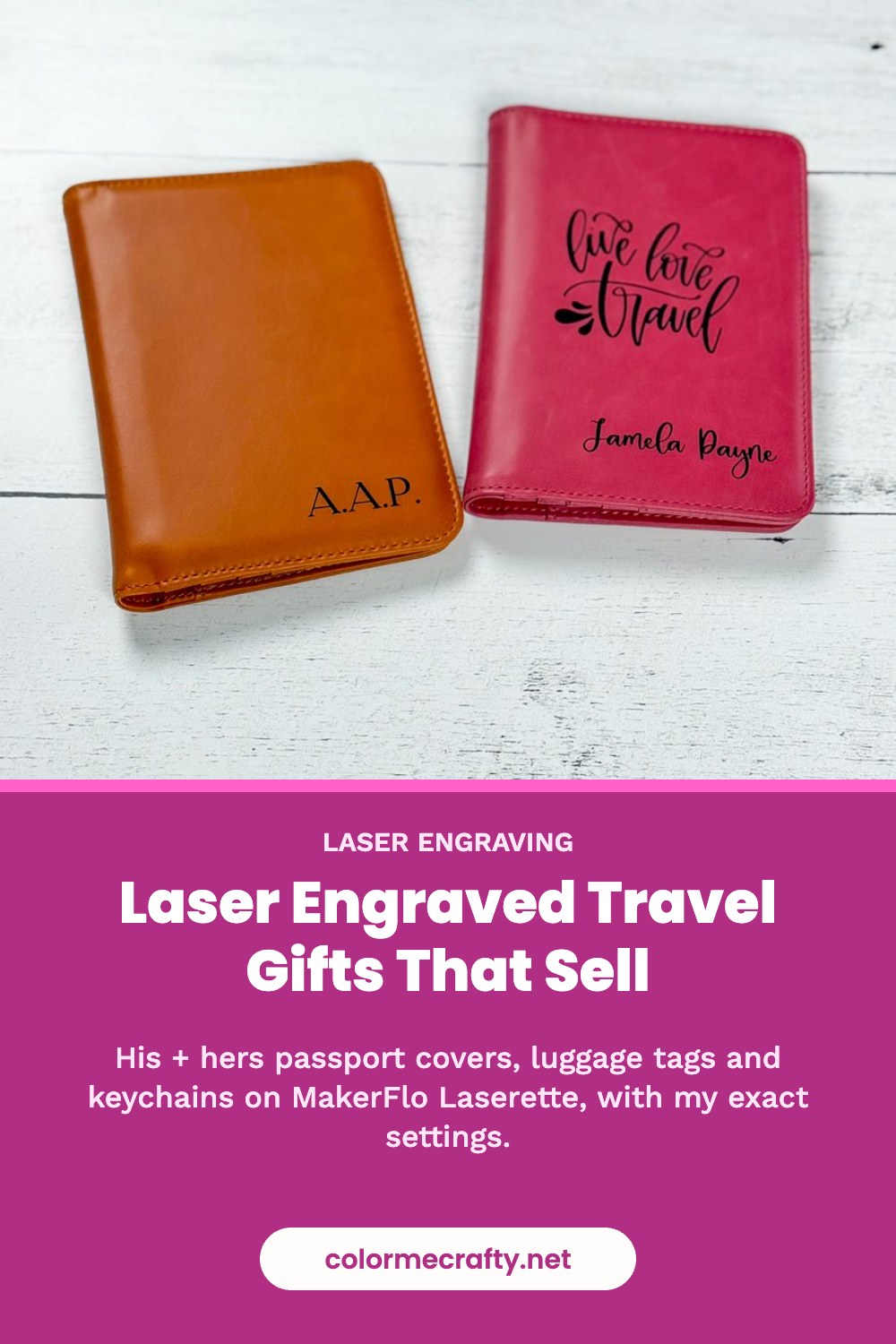
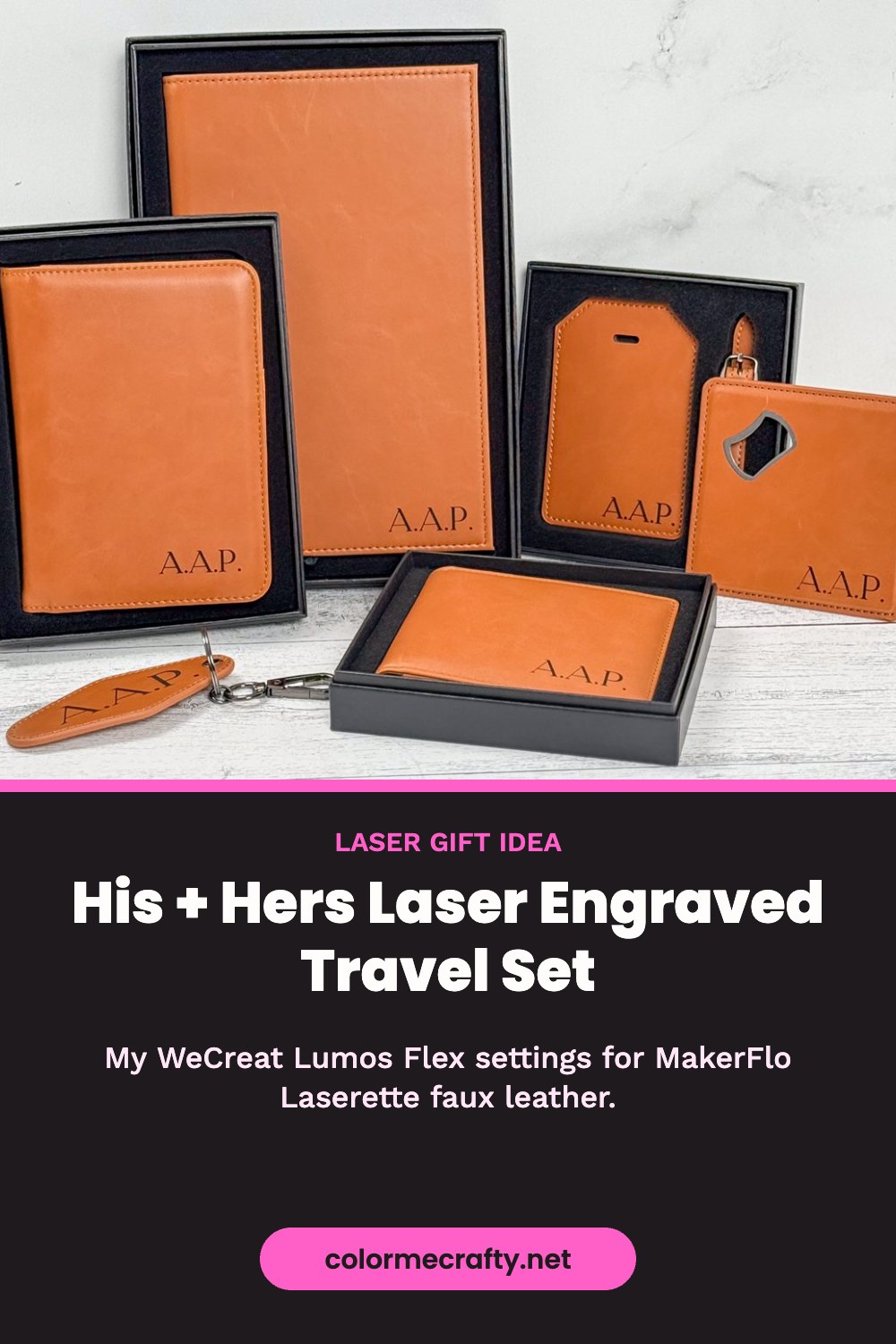
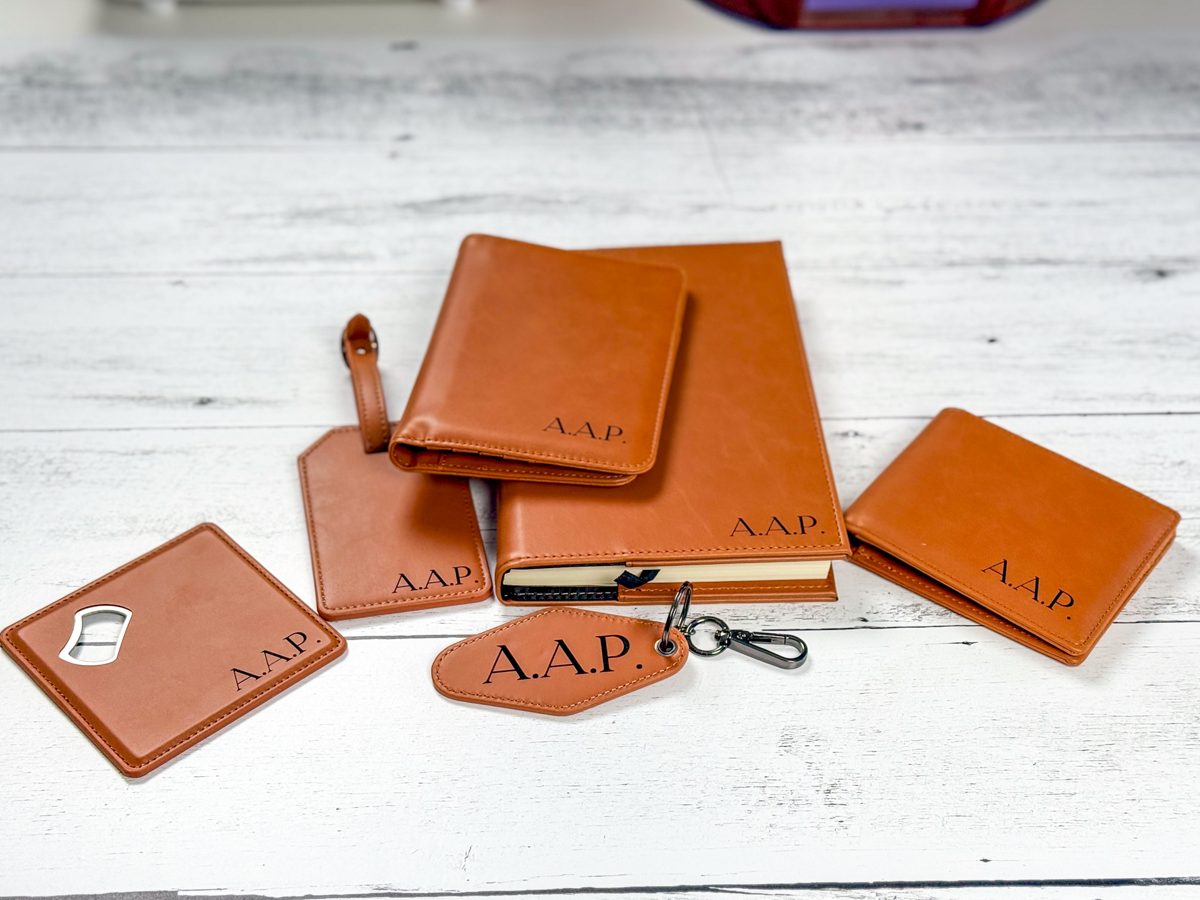
Laser engraved travel gifts are one of the easiest things to sell, and one of the easiest to make look expensive. In my laser material test post, I dialed in my settings on the MakerFlo Laserette swatches. Now it’s time to see how it actually burns on real products. I made a his and hers travel set on my WeCreat Lumos Flex: passport covers, luggage tags and keychains.
I recently started a business doing live engraves, so I’ve been testing a bunch of materials to figure out exactly what I want to offer at events. Faux leather travel pieces made the cut. Here’s how I made them, my exact settings, and the little fixes that saved me time.
Watch Me Make the Travel Set
What You Need
- MakerFlo Laserette faux leather passport covers, luggage tags and keychains
- A laser engraver (I’m using the WeCreat Lumos Flex with the blue laser)
- An SVG design (I used a “live, love, travel” design plus initials)
- Something to weigh the pieces down so they lie flat
- Laser safety glasses if you run your laser with the lid open
My Laser Settings for MakerFlo Laserette
These are the settings I used on every piece in this set, using fill engrave on the WeCreat Lumos Flex blue laser:
- Speed: 325
- Power: 55%
- Line density: 200
Use these only as a starting point. Every machine is different, whether you have the Lumos Flex, the Glowforge Aura, or the xTool P2 or F1, so run a test array on a scrap first. If you’ve never done one, my material test walkthrough shows you exactly how.
How to Laser Engrave a Faux Leather Passport Cover
1. Set Up and Focus
Open a new project and connect your machine. You can engrave a passport cover on the front, the spine, the back or the inside. I only did the front. Lay the cover in the machine, weigh it down so it’s nice and flat, then focus. I focused manually.
2. Add Your Design
Drag your SVG onto the canvas and refresh the camera so you can see what’s on the laser bed. I centered my design and made it a little bigger, then used Framing to see exactly where it would land.
3. Fix a Design That’s Outside the Laser Bed
My first placement ran off the edge of the work area. The fix: turn the passport cover sideways in the machine, then rotate the design to match. Hold Shift while you flip so it stays proportional, and round your size to an even number with no decimals so it doesn’t end up off by a hair.
4. Add the Names
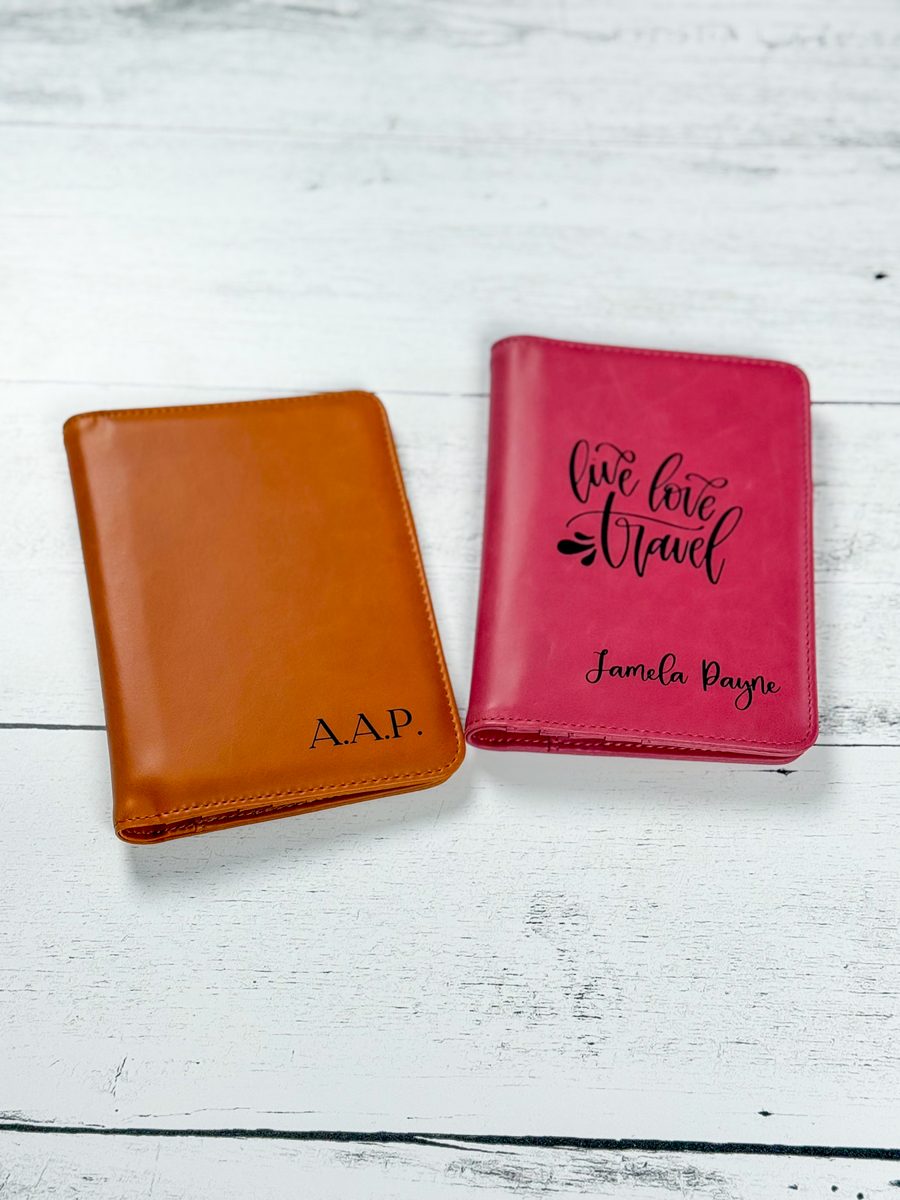
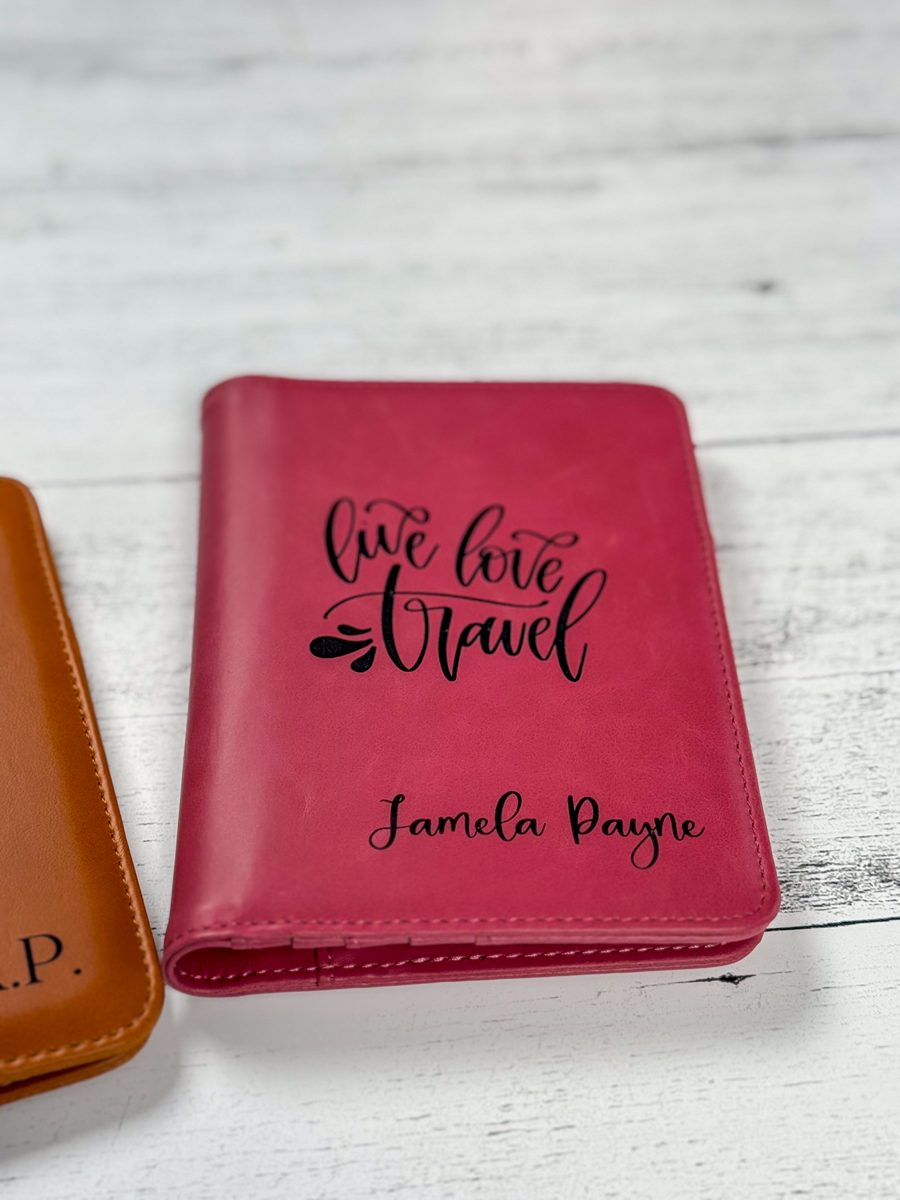
For his, I kept it simple: plain initials in the bottom corner, no “live, love, travel.” I used a system font called Red Rain, switched it to fill engrave, and sized it down. For hers, I picked a script font that matched the design. Tip: type both names at the same time and overlap them to line them up. It’s much faster than doing them one at a time like I did.
5. Engrave
Double-check your settings before you hit start. I forgot to change mine the first time and had to stop and redo it. The design took about eight minutes. The initials-only cover took 23 seconds.
Both covers came out amazing. The Laserette is really high quality, the engrave is nice and dark, and once your settings are right there’s very little to no soot or residue. The inside has pockets for your passport plus spots for cards.
Laser Engraving Luggage Tags and Keychains
The bed wasn’t big enough for everything at once, so I did one luggage tag and one keychain together. The luggage tag is a little thicker than the keychain, but the same settings worked on both. No adjustments needed.
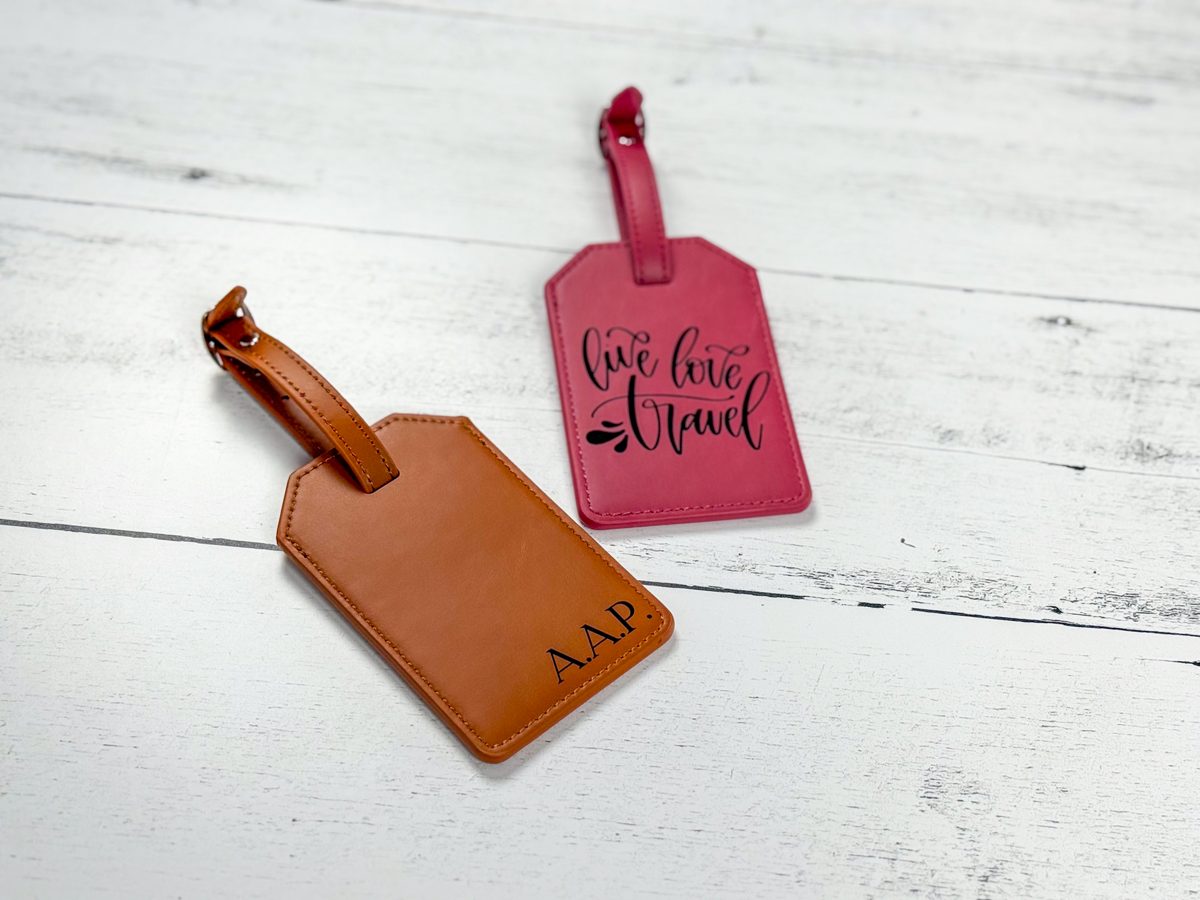
I engraved the front, then flipped them over for the back. One time-saver: you don’t have to refresh the camera image every time. I skipped refreshing and used Framing to place everything, and it worked great (the screen just looks a little crazy).
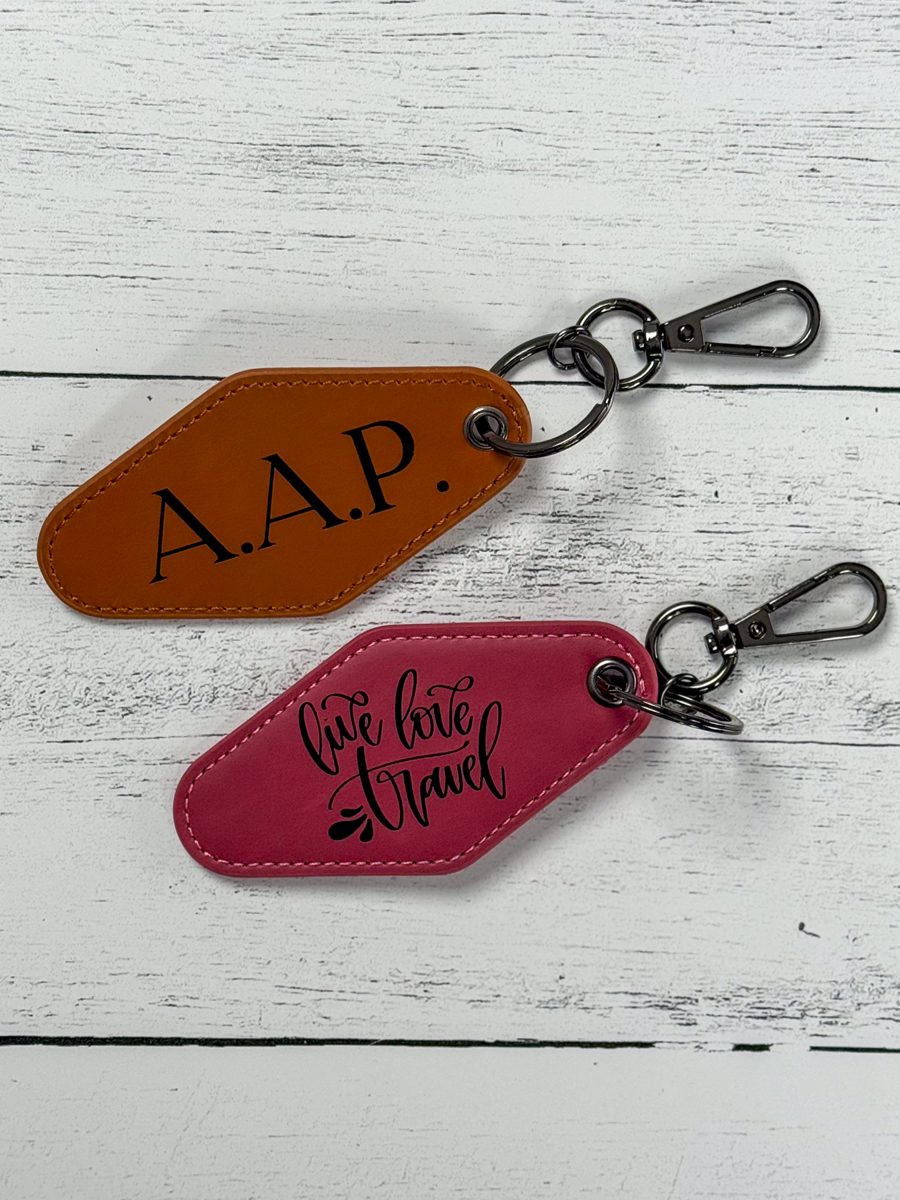
When the keychain is done, add the ring. It comes with a lobster clasp and key ring. For the luggage tag, slide the strap through and buckle it.
Travel Gift Ideas That Sell
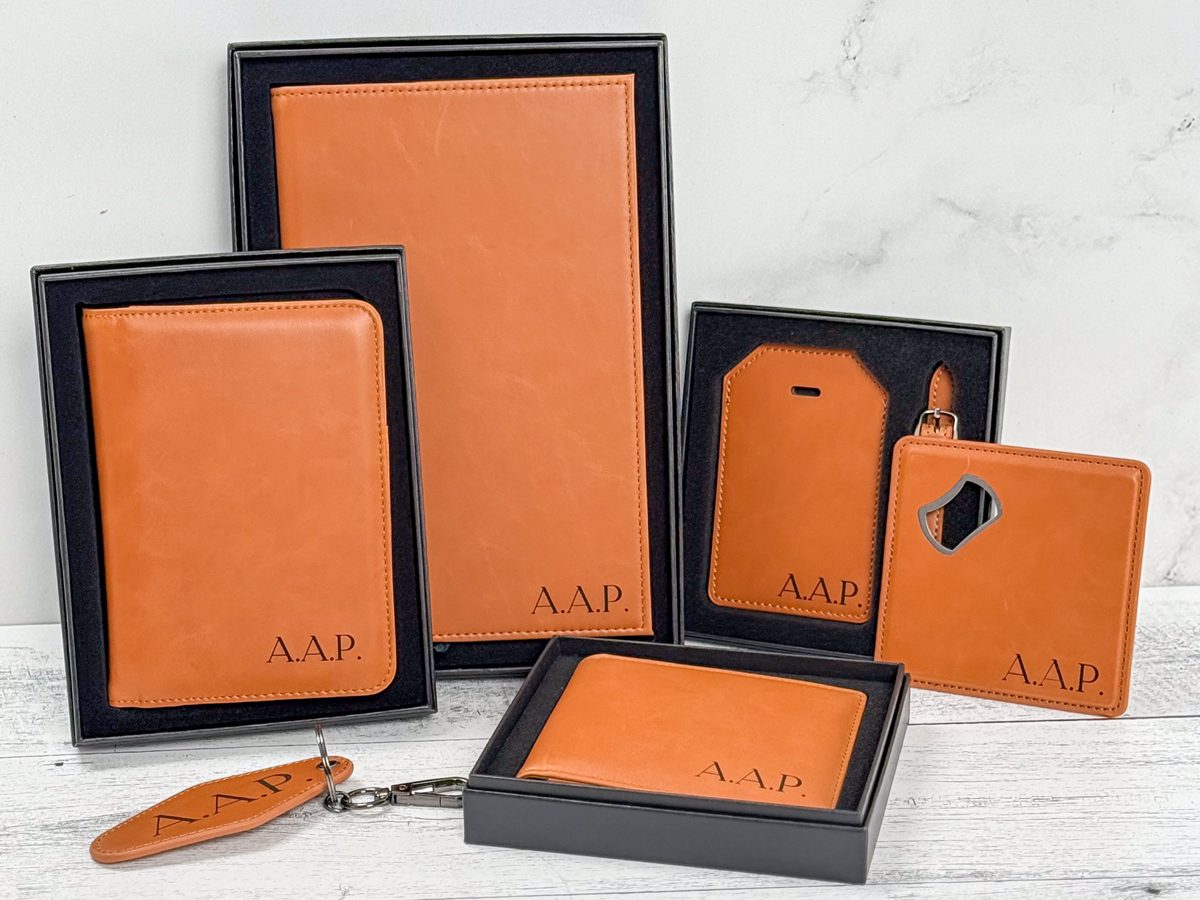
- His and hers travel set: passport covers, luggage tags and keychains with matching initials
- Newlywed gift: add the couple’s wedding date to the luggage tag or passport cover
- Honeymoon or destination wedding favors
- Graduation or study abroad gifts with a name and year
Laser Safety Tip
If you use a blue light laser with the lid open, wear protective glasses at all times.
FAQ
Can you laser engrave faux leather?
Yes. Laserette (laserable leatherette) is made for it. It engraves dark and clean with very little soot once your settings are right.
What settings do you use for MakerFlo Laserette on the WeCreat Lumos Flex?
Fill engrave at 325 speed, 55% power and a line density of 200 with the blue laser. Always run your own test first.
Do thicker pieces need different settings?
Not here. The luggage tag is thicker than the keychain, and the same settings worked on both.
What’s the best way to line up a design on a laser?
Use Framing. It traces exactly where the laser will engrave, so you can nudge your design until it’s right, even if you don’t refresh the camera image.
Now hubby and I are ready for our next trip! If you make your own travel set, tell me in the comments what you engraved. And if you’re selling these, my Crafty Cost Calculator will help you price them for profit.
Save this for later! Pin one of these to your Pinterest board.